

China DisplayPort 2.1 Cable: A Practical Guide to Specs, Quality, and Choosing the Right One
2026-10-20
If you've been hunting for a DisplayPort 2.1 cable that can actually handle 4K at 240Hz or 8K at 60Hz without signal drops, you already know the market is flooded with misleading specs and flimsy connectors. China remains the world's manufacturing hub for these high-bandwidth cables, but not all of them survive the rigorous UHBR20 certification. That's where this practical guide comes in — we'll break down the real differences between DP40 and DP80 cables, show you what to look for in shielding and connector quality, and point you toward reliable options like EBCYX, a brand that has quietly built a reputation for consistent, lab-tested DisplayPort 2.1 cables. Whether you're connecting a new GPU to a gaming monitor or setting up a multi-display workstation, choosing the right cable is the difference between flawless high-refresh output and frustrating black screens. Let's sort out the specs, the marketing hype, and the few products worth your money.
Decoding DP 2.1 bandwidth claims on paper versus in practice
DP 2.1 spec advertises up to 80 Gbps via UHBR20, but that number only exists under ideal conditions. In practice, most shipping monitors and GPUs stick to UHBR10 or UHBR13.5, cutting raw bandwidth to 40 or 54 Gbps. Even then, cable length and connector quality often force a fallback to lower link rates.
DSC complicates the picture further. Because visually lossless compression is nearly universal, the headline bandwidth rarely translates to uncompressed pixel throughput. A monitor labeled "DP 2.1" might only accept a 40 Gbps signal and rely on DSC for 4K 240Hz, while the same label on paper could imply 80 Gbps. The certification itself doesn't distinguish between UHBR tiers, so buyers can't tell what they're getting from the version number alone.
Then there's the cable problem. Passive cables longer than a meter or two often fail UHBR20 training and silently drop to UHBR10, erasing the supposed advantage over HDMI 2.1. Until active cables and better PHY implementations become common, the theoretical 80 Gbps remains more marketing bullet than everyday reality.
What separates a durable Chinese-made cable from a flimsy one
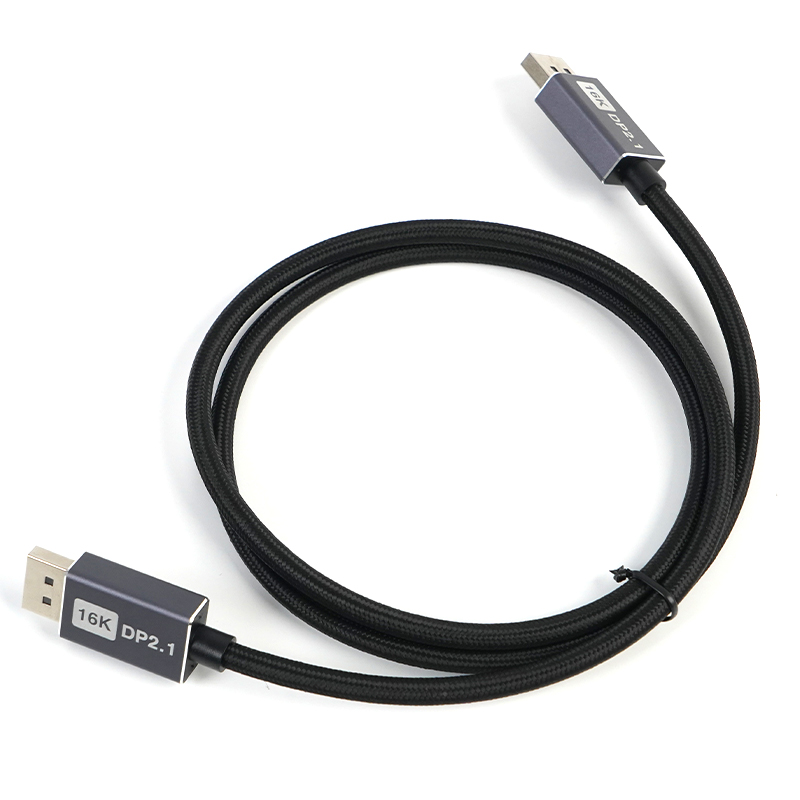
The first thing to check is the joint where the cable meets the connector. A durable cable has a thick, slightly rubbery strain relief that tapers gradually and lets you bend the wire hard without feeling the plug cut into the insulation. Flimsy ones use a short, stiff plastic boot that cracks after a few weeks in a laptop bag. If you can pinch the cable right behind the plug and feel the wires shifting beneath a thin skin, it is already on borrowed time.
Inside, the difference is just as obvious. Durable Chinese-made cables often use finely stranded pure copper conductors with a decent gauge, plus braided shielding and a foil wrap. Cheap versions swap in copper-clad aluminum or fewer, coarser strands, so they heat up under fast charging and snap internally after repeated coiling. The outer jacket matters too: good cables have a soft-touch PVC or woven nylon sheath that stays flexible, while flimsy ones turn stiff and shiny, then split open at the first sharp bend.
When cheaper cables quietly limit your refresh rate
You finally upgrade to a high-refresh-rate monitor, plug in that spare HDMI cable from the drawer, and wonder why 120Hz still feels choppy. The cable might be the quiet saboteur. Cheaper cables often lack the bandwidth headroom to carry high-speed signals reliably, even if they fit the port perfectly. What you see is not a total failure, but a sneaky downgrade—your display silently negotiates down to 60Hz or 75Hz because the cable can't keep up, and no warning message pops up.
The problem gets worse with longer runs or when pushing higher resolutions like 1440p or 4K. A budget cable may pass a basic 1080p60 test but fall apart under the data load of 1440p144 or 4K120. Unlike a broken cable that shows a black screen, these marginal cables let you use the monitor, just not at its full potential. You might blame the GPU, the monitor settings, or even the game for the missing smoothness, never suspecting the thin wire in between.
To avoid this hidden bottleneck, treat cables as part of the upgrade, not an afterthought. Look for certification labels like Ultra High Speed HDMI or DisplayPort 1.4 with proper bandwidth ratings, and test your actual refresh rate in your operating system after connecting. A few extra dollars spent on a quality cable can mean the difference between wondering why your high-end monitor feels average and finally seeing every frame you paid for.
Practical length limits before signal boosters become necessary
Copper cables lose signal strength as distance increases, and the exact point where a booster becomes necessary depends heavily on the signal type and cable quality. For HDMI, 10 to 15 meters is often the practical ceiling before sparkles, dropouts, or a blank screen start showing up. USB 3.x connections tend to get flaky beyond 3 to 5 meters, while USB 2.0 can sometimes stretch to 5 meters with a decent cable. Ethernet over Cat5e or Cat6 holds up well to 100 meters, but pushing past that usually means adding a switch or an extender rather than expecting the signal to hold.
Coaxial runs for TV or satellite are a bit more forgiving, though higher frequencies attenuate faster. A well-shielded RG6 cable might carry a usable signal 50 to 100 meters, but if you are splitting to multiple rooms or using older RG59, a booster may be needed much sooner. The real test is not the printed spec but what happens in your setup. Intermittent glitches, slow negotiation, or reduced resolution are signs the cable is past its practical limit.
Environmental factors also shift these numbers. Tight bends, cheap connectors, electromagnetic interference, and daisy-chained adapters all eat into the usable length. If a run needs to cross a long hallway, snake through conduit, or feed a display in a different room, planning for a powered booster or active cable from the start saves a lot of trial and error.
A quick post-purchase check for dropouts and flicker
Start with a realistic test right after unboxing. Connect the device and let it run through a normal session—watch a movie scene with lots of motion, stream a long playlist, or use it in the exact spot you bought it for. The goal is to catch any intermittent problems early, because most retailers only give you a short window for a hassle-free return.
Move around while the signal is active. Walk into the next room, stand behind a wall, or place a body between the transmitter and receiver. Dropouts often show up as brief audio cuts or video freezing, while flicker tends to be a rapid on-off stutter in the picture or a humming pulse in the audio. Don't just sit in one spot—real use means moving, and that's when weak links break.
If you notice dropouts or flicker only at extreme range or through multiple walls, that might be normal. But if it happens at short distances or in clear line of sight, that's a defect. Write down the exact conditions and try another cable or power outlet to rule out simple causes. A quick video from your phone can be useful if you need to explain the issue to support.
Choosing between active and passive variants for your desk or living room
For a desk setup, active speakers often win simply because they cut down on clutter. You plug them into your laptop or interface, and the amp is already inside—no separate box to hide under the monitor stand. Passive options, though, give you room to experiment with different amps later, which matters if you plan to upgrade in stages.
In the living room, the decision shifts slightly. Active models keep the TV cabinet cleaner and usually have remote-friendly features like optical inputs or Bluetooth. But if you already own a decent receiver or integrated amp, passive speakers let you reuse that gear and swap just the speakers when you crave a different sound. Think about whether you value simplicity now or flexibility down the road.
FAQ
The headline upgrade is raw bandwidth: DP 2.1 tops out at 80 Gbps through UHBR20, while DP 1.4 maxes at 32.4 Gbps. In practice that means one cable can handle 8K at 60 Hz without compression or multiple 4K high-refresh displays through a single port. But keep in mind the source and display both need to support the same UHBR tier, otherwise everything falls back to the slower spec.
Look for a VESA Certified badge on the packaging or product page, not just the words 'DP 2.1' printed on the jacket. Good cables usually have thicker gauge conductors (26 AWG or lower), braided shielding plus foil layers, and gold-plated connectors with a snug fit. Real user reviews with photos of the cable internals or connector close-ups are often more telling than spec sheets.
Yes, copper cables lose signal integrity as they get longer. For full UHBR20 speeds, staying under 1.5 to 2 meters is the safe bet. If you need a run longer than about 3 meters, look into active copper or optical fiber DP 2.1 cables, which cost more but preserve the signal over distance.
It should work fine. The cable and connectors are physically the same, and the whole chain negotiates the highest common speed. So a DP 2.1 cable plugged into a DP 1.4 GPU and monitor will simply run at DP 1.4 bandwidth, which is still plenty for 4K 120 Hz or 144 Hz with DSC.
Those are the three speed tiers defined for DP 2.1: 40 Gbps, 54 Gbps, and 80 Gbps. Not every cable labeled 'DP 2.1' supports the fastest tier. A cable marketed as UHBR10 is cheaper but limits you to lower resolutions or refresh rates at 8K. Always check the fine print for the UHBR number rather than assuming all DP 2.1 cables are equal.
Braided cables survive repeated bending and look cleaner in a visible setup, but they can be stiff and hard to route in tight spaces. PVC jackets are softer and more flexible, though they may crack or stick over years of heat exposure. If the cable lives behind a desk and never moves, PVC is usually fine; if you unplug it often or have pets, go braided.
Stick to sellers with a clear return policy and look for the VESA certification logo with a QR code you can verify. Avoid cables that claim 80 Gbps but cost less than a comparable DP 1.4 cable from a known brand. Search for teardown reviews or forum threads where people test actual bandwidth with a signal generator, not just unboxing videos.
Not really. A good DP 1.4 cable handles 4K 144 Hz using Display Stream Compression, and most current GPUs and monitors don't have DP 2.1 ports anyway. Buying a DP 2.1 cable now only makes sense if you're planning to upgrade to an 8K display or a future GPU with UHBR ports within the cable's lifetime, or if you want one cable that won't become a bottleneck for years.
Conclusion
When shopping for a China-made DisplayPort 2.1 cable, the gap between marketing numbers and actual performance is often wider than expected. A cable labeled UHBR20 may only sustain that bandwidth over a meter or two in ideal lab conditions, while a typical two-meter run in a living room can quietly drop to UHBR10 territory if build quality is marginal. The real difference comes down to physical construction: thicker copper conductors, individually shielded twisted pairs, and solid one-piece connectors resist the bend-and-twist fatigue that turns cheaper cables into intermittent signal sources after a few months behind a desk.
Before paying extra for an active optical cable, measure your actual distance. Passive copper handles up to roughly three meters for full UHBR13.5 or two meters for UHBR20, but beyond that you will see random dropouts or full signal loss unless you switch to an active variant. After unboxing, run a quick stress test at your target resolution and refresh rate—watch for flicker on dark gradients and listen for audio stutter, then wiggle the connector gently to catch marginal solder joints. For most desk setups under two meters, a well-built passive cable is enough; reserve active cables for long runs to a TV or projector where the extra cost buys real stability, not just a bigger spec sheet.
Contact Us
Contact Person: David Yang
Email: [email protected]
Tel/WhatsApp: 8615814734054
Website: https://www.ebcyx.com/